Schedule a club session
Matcha has two kinds of session. An individual session is a solo recording with no club attached — you just hit record (see Record a session). A club session is created by club staff, attached to your club, and comes with a player roster and a schedule. This page covers creating a club session in the app. New to roles? See Roles & clubs.
Who can schedule a club session
Section titled “Who can schedule a club session”Club owners, admins, and coaches (your club “staff”) can create and schedule sessions. Players cannot create sessions — they take part in the ones you schedule for them.
Create a club session
Section titled “Create a club session”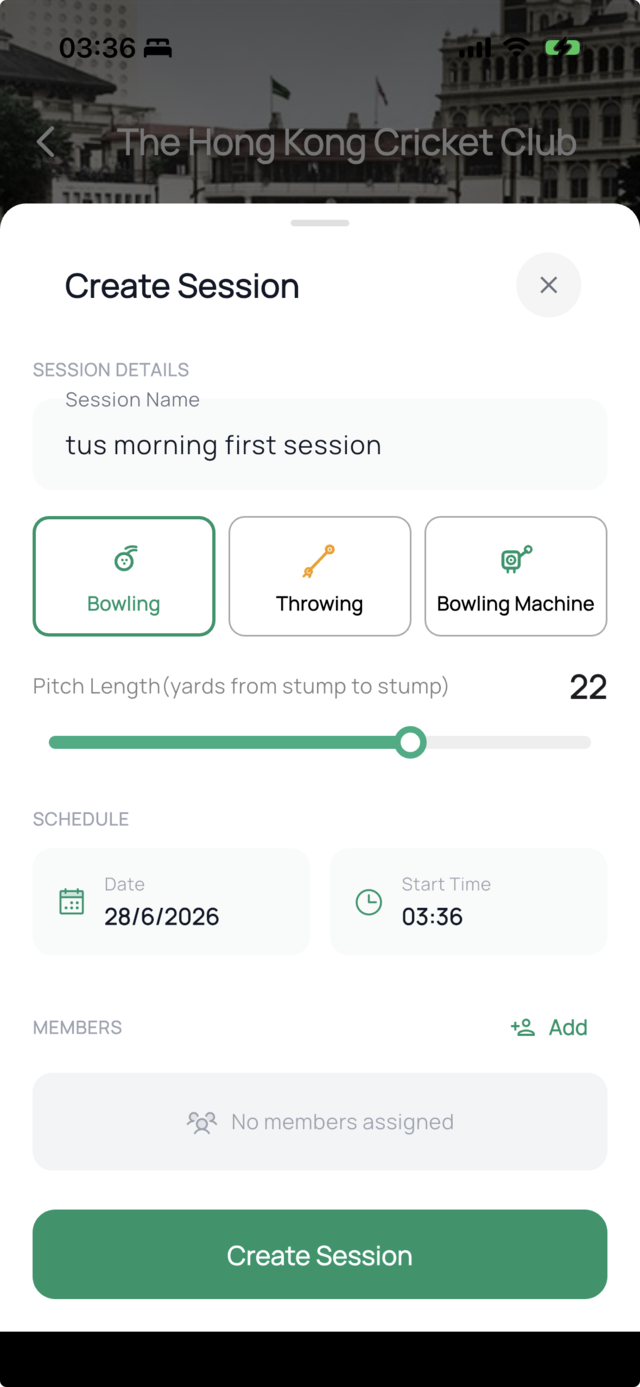
- Open your club and go to the Sessions tab.
- Tap the + (create) button.
- Fill in the session details:
- Name — e.g. “Tuesday pace nets”.
- Session type — bowling, throwing, or bowling machine. This just describes the kind of delivery; it doesn’t change how you record.
- Pitch length — the net/pitch length in yards.
- Set the date and time for the session.
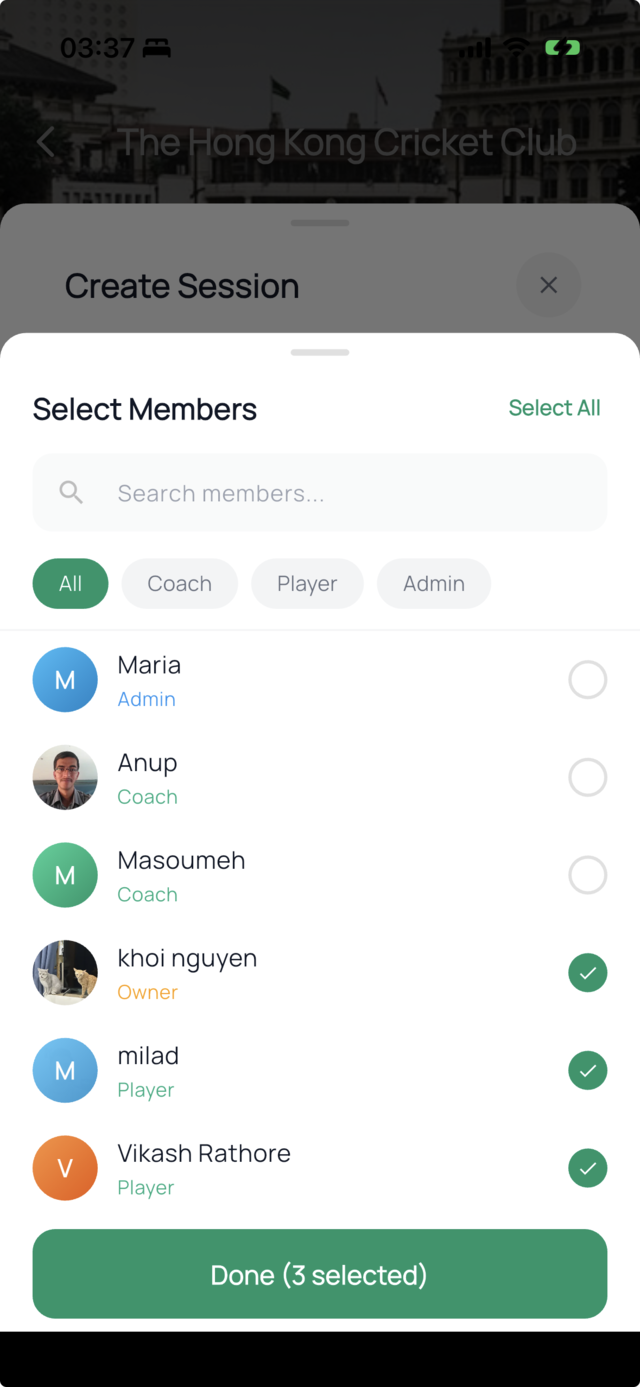
- Select players. Open the member picker, search or filter by role, and multi-select everyone who’ll take part.
- Submit. The session is saved to your club’s schedule.
Scheduled vs completed
Section titled “Scheduled vs completed”The Sessions tab splits sessions into Scheduled and Completed, with a weekly calendar view so you can see what’s coming up. A session you just created appears under Scheduled until it’s recorded and marked complete.
Next: record & tag deliveries.