
Invite & roster players
Players join your club either by email invite or by your club’s invite code. Once they’re in, you can organise them into squads (rosters).
Option A — invite players by email
Section titled “Option A — invite players by email”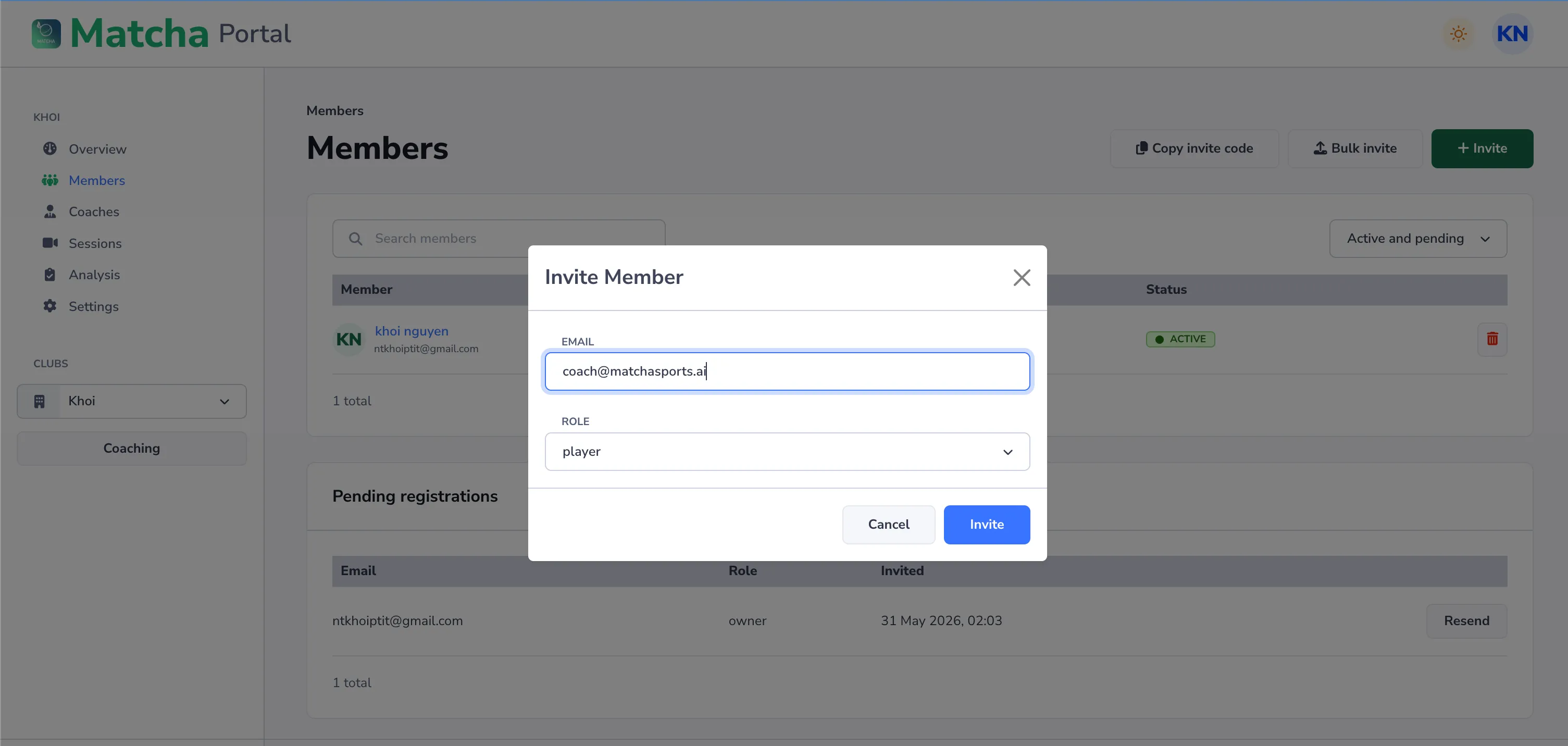
- Open your club in the portal and choose Invite.
- Enter the player’s email and set the role to Player.
- Send it. New players are added to your club automatically when they sign up with that email; existing users get a pending invitation to accept.
For many players at once, use bulk invite — paste one email per line (or email,player format) and select Send invites.
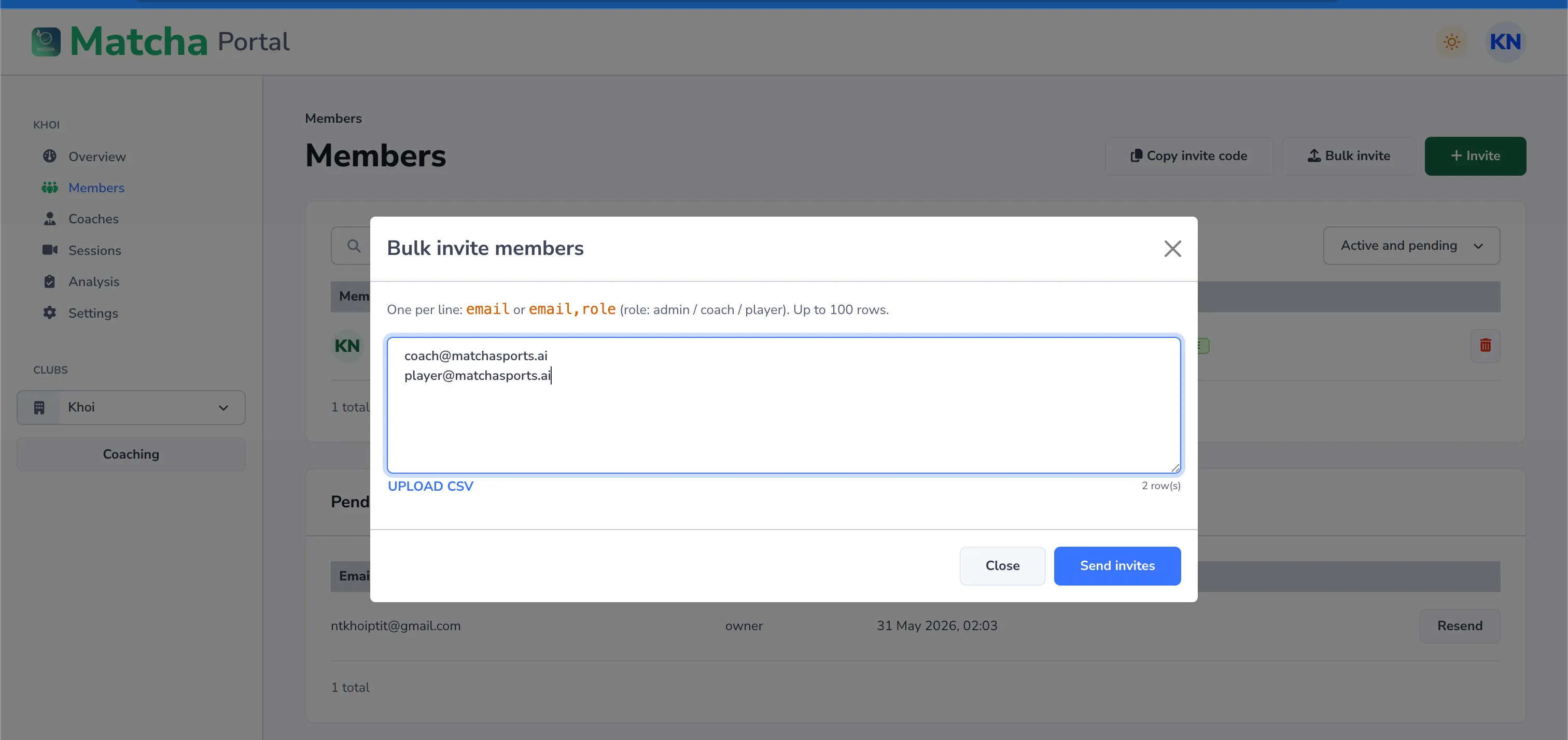
Option B — share your invite code
Section titled “Option B — share your invite code”Every club has a short invite code. Anyone who enters it in the app joins your club as a player.
- Find your club’s invite code in the portal (you can refresh it to invalidate the old one).
- Share the code with your players.
- Players enter it in the app — see Join your club.
Approving join requests
Section titled “Approving join requests”Depending on your settings, players who join may appear as pending. Owners, admins, and coaches can approve or reject pending members from the members list.