
Invite coaches
To add another coach to your club, invite them by email from the portal. This is the path that makes someone a coach from day one.
Invite a coach by email
Section titled “Invite a coach by email”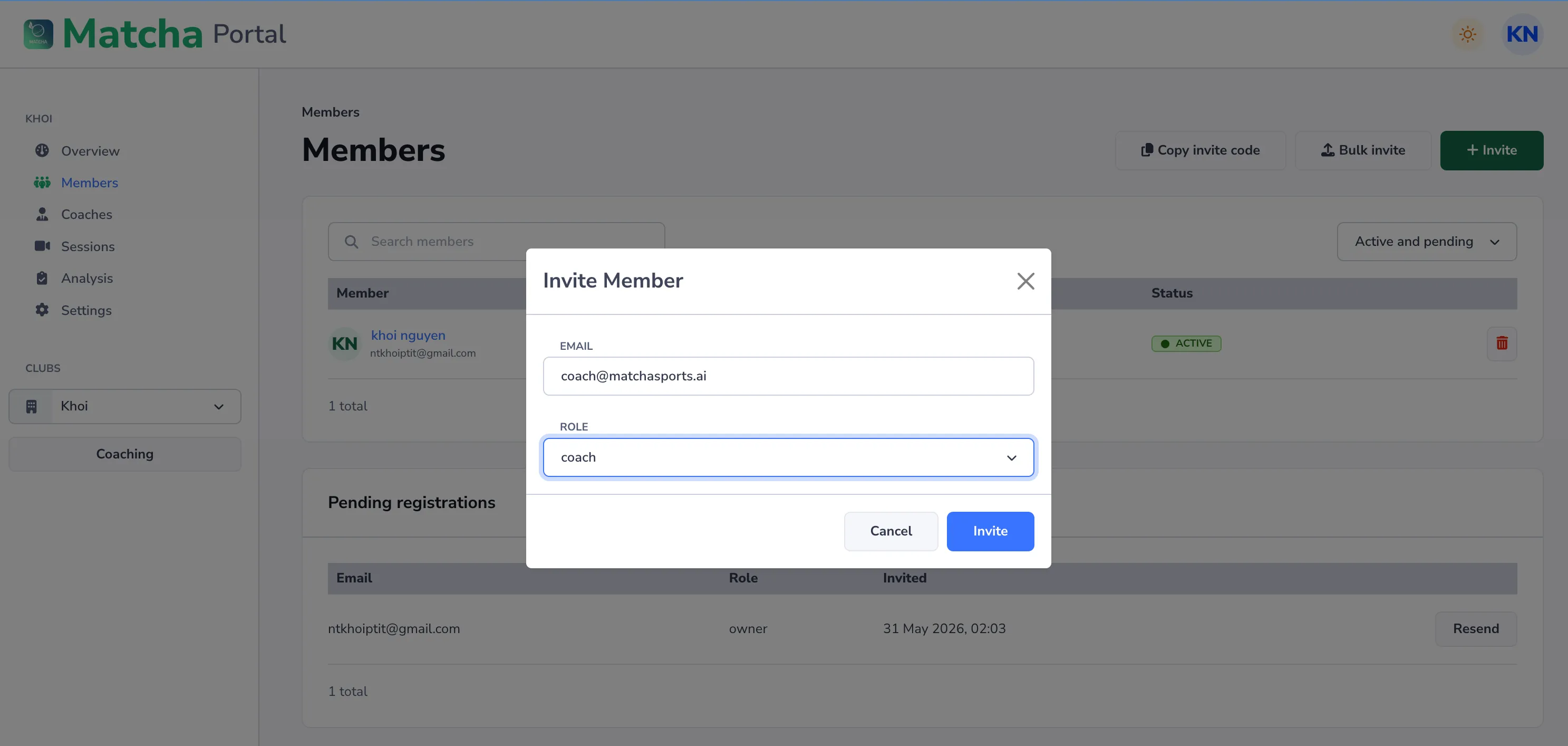
- In the portal, open your club.
- Go to the members / coaches area and choose Invite.
- Enter the coach’s email address and set the role to Coach.
- Send the invite.
What happens next:
- If the coach already has a Matcha account, they get an invitation they can accept (it appears in their pending invitations).
- If the coach is new to Matcha, the invite is stored against their email. When they sign up later with that email, they’re automatically added to your club as a coach — no extra step.
Inviting several coaches at once
Section titled “Inviting several coaches at once”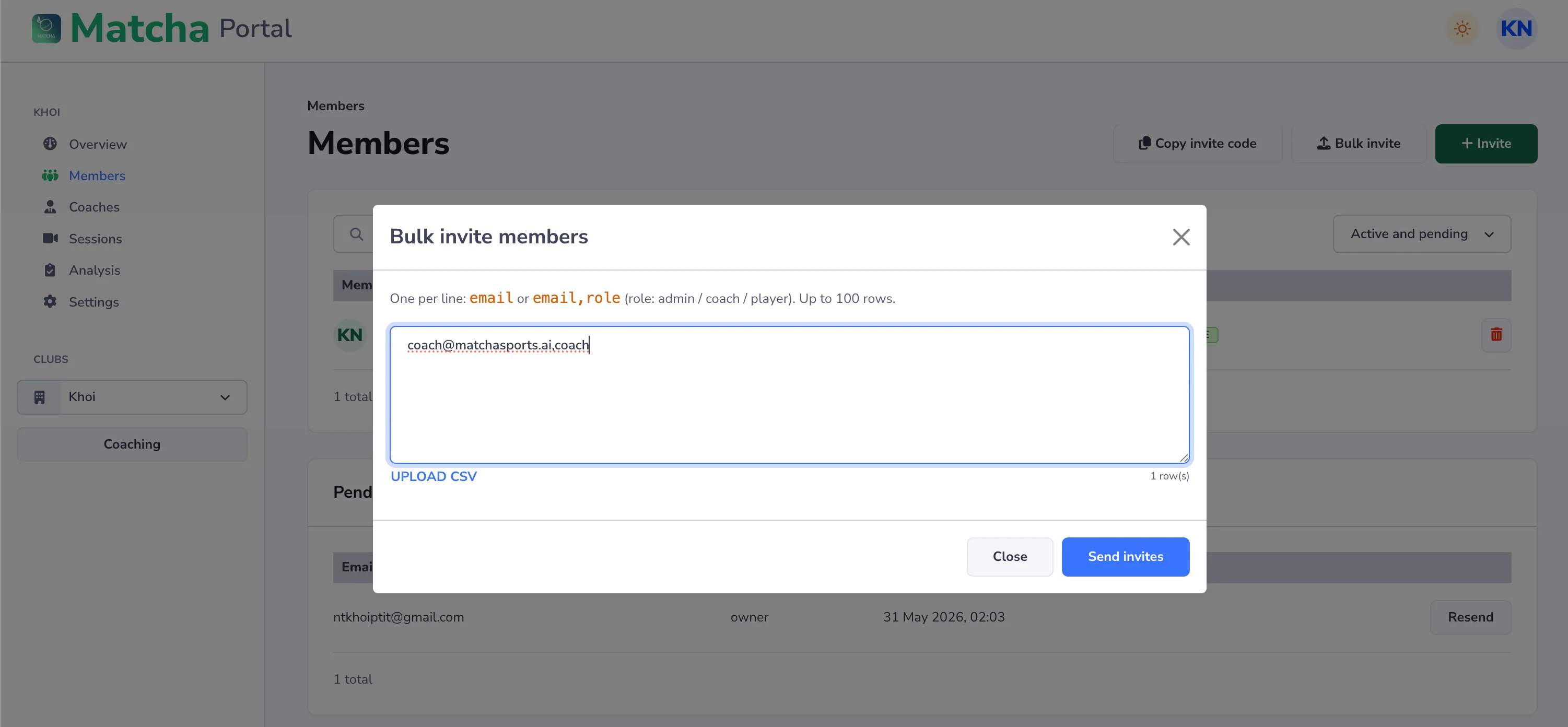
Use the bulk invite option to paste or upload multiple email addresses with the Coach role in one go. Each person is invited exactly as above.
Managing invited coaches
Section titled “Managing invited coaches”From the members area you can:
- see pending invites and resend them,
- approve or reject people who requested to join,
- change a member’s role (owners/admins only), or remove a member.