Record & tag deliveries
Once a club session is scheduled, you record it like any other session, then tag each delivery with its batter and bowler so every player’s analysis is attributed correctly.
Record a scheduled session
Section titled “Record a scheduled session”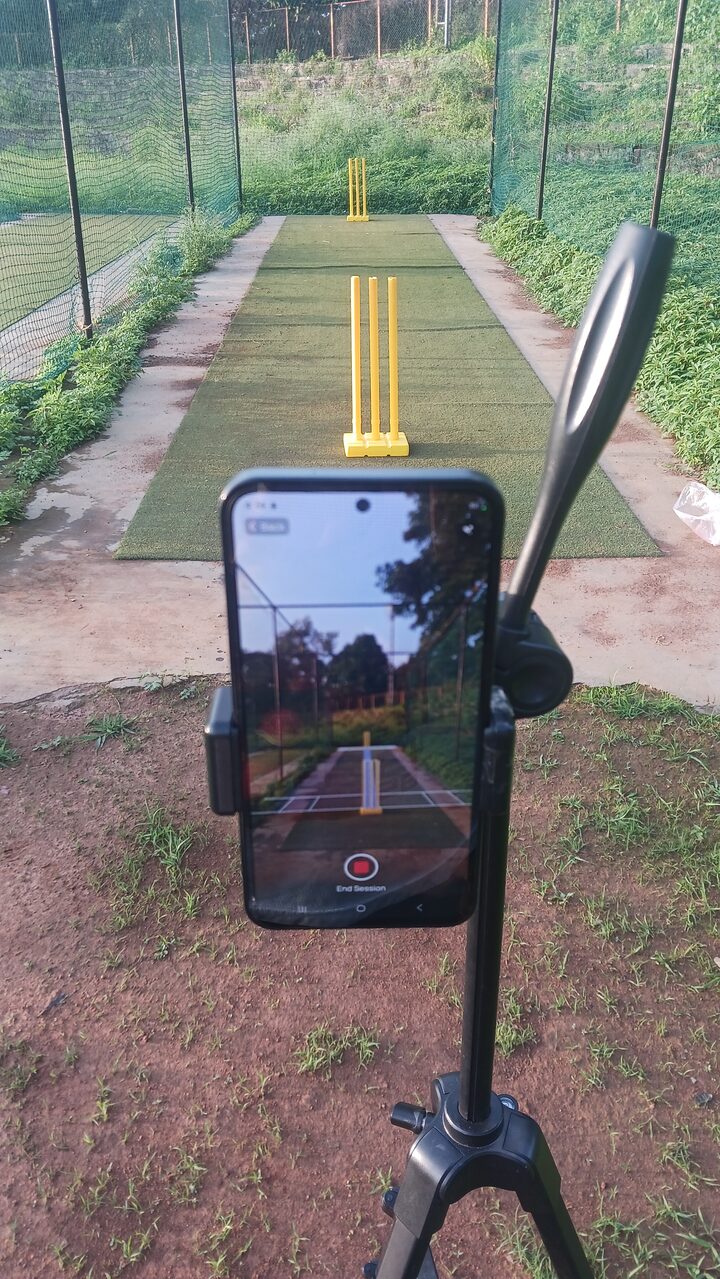
- Open the scheduled session from the Sessions tab.
- Tap Record.
The camera setup — mounting the phone, calibrating on the stumps, and automatic delivery detection — is exactly the same as a solo session. Follow Record a session for the full setup and calibration guide.
Who can record
Section titled “Who can record”- Owners and admins can record any club session.
- A player can only record a session they’re tagged into. If a player can’t start recording, check they’re in the session’s roster (tag them first — see Schedule a club session).
Tag batter & bowler
Section titled “Tag batter & bowler”After recording, open Session Info. Staff can assign players to deliveries in three ways:
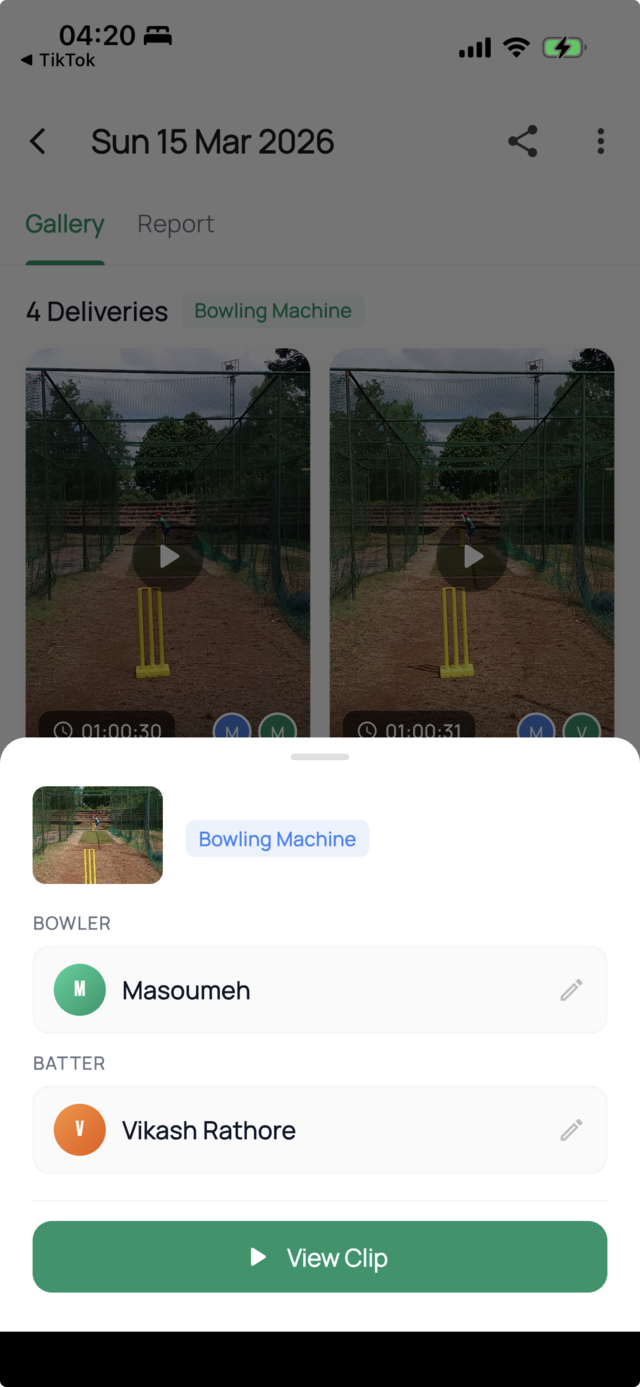
- Per delivery — open a single delivery and set its batter and bowler.
- Bulk — pick a role (Bowler or Batter) and apply it to several deliveries at once.
- Tag all — assign batter and bowler across every delivery in the session in one step.
Tagging matters because it attributes each delivery’s KPIs to the right player, so everyone gets their own report — see review KPIs & annotate.
Mark the session complete
Section titled “Mark the session complete”When you’re done, staff can mark the session Complete. A scheduled session also completes automatically about 24 hours after its scheduled time.
Next: review KPIs & annotate.